How Spam Bots Attack WooCommerce Stores (& How to Block Them)
March 10, 2026
Spam bots can do more than fill your inbox with fake messages — they can flood your WooCommerce store with fake orders, test stolen cards, overload your checkout, & waste your time.
This guide explains how these attacks happen, what signs to watch for, & how to stop them without making checkout harder for real buyers.
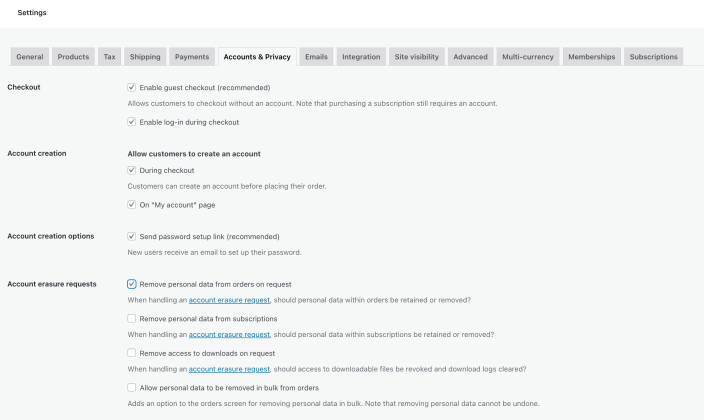
Example screen: WooCommerce → Settings → Accounts & Privacy, where you can disable guest checkout.
Contents
- Why Spam Bots Target WooCommerce
- How to Recognize a Spam Bot Attack
- Step 1: Disable Guest Checkout
- Step 2: Add hCaptcha Protection
- Step 3: Protect User Registrations & Reviews
- Step 4: Clean Up & Monitor
- Real Case: After One Month of Optimization
- Step 5: Keep Your Store Protected
- Final Thoughts
Why Spam Bots Target WooCommerce
WooCommerce is one of the most popular e-commerce platforms for WordPress — which makes it a big target for abuse.
Bots can:
- Create fake accounts or use guest checkout to test stolen credit cards.
- Send thousands of failed or incomplete orders.
- Register fake users that fill your database with junk data.
- Post spam reviews or comments with links.
These attacks waste server resources, distort analytics, & make your store look unreliable to real customers.
How to Recognize a Spam Bot Attack
You can usually spot the problem by watching your WooCommerce order list, user registrations, payment logs, or server activity.
- A sudden spike of failed or pending orders.
- Orders with the same IP or browser fingerprint.
- Suspicious usernames like te*****@*****le.com or as****@********il.com.
- Checkout requests from unexpected countries or unusually high-frequency traffic.
- Many small payment attempts showing up in Stripe or PayPal logs within seconds.
These signs often point to card testing attacks or fake order spam.
Step 1: Disable Guest Checkout
One of the easiest ways bots submit fake orders is through anonymous checkout.
When guest checkout is enabled, bots do not need to create an account. That makes it faster for them to send junk orders through your store.
To disable guest checkout in WooCommerce:
- Go to WooCommerce → Settings.
- Open the Accounts & Privacy tab.
- Find the checkout option that allows customers to place orders without an account.
- Uncheck that box.
- Save changes.
Disabling guest checkout helps because every buyer must now go through account creation or login. That adds friction for bots while making your customer records cleaner.
You can also link readers to the official WooCommerce settings doc here:
https://woocommerce.com/document/configuring-woocommerce-settings/accounts-and-privacy/
Step 2: Add hCaptcha Protection
After disabling guest checkout, the next layer is adding hCaptcha to your important forms.
hCaptcha helps stop automated bots from submitting checkout forms, login forms, registration forms, password reset forms, & review forms.
You can learn more or create your keys here:
Basic setup usually looks like this:
- Sign up for hCaptcha.
- Create a site key & secret key.
- Install a WordPress or WooCommerce-compatible hCaptcha plugin.
- Paste in your keys.
- Enable hCaptcha on checkout, login, registration, & reset password forms.
This gives you a stronger front-line defense against automated submissions.
Step 3: Protect User Registrations & Reviews
Spam bots do not just attack checkout. They also register fake accounts, leave junk reviews, & fill your database with bad records.
Here are a few smart protections:
- Enable email verification for new users.
- Allow reviews only from verified buyers.
- Add honeypot fields or hidden inputs in registration forms.
- Use hCaptcha on user registration, login, & review forms too.
These steps make your user database cleaner & your store more trustworthy.
Step 4: Clean Up & Monitor
If your store has already been hit, cleaning up matters just as much as blocking the next attack.
- Bulk delete failed or incomplete spam orders.
- Review recent user registrations for fake accounts.
- Set up alerts for strange spikes in checkout traffic.
- Watch your payment gateway logs for repeated low-value attempts.
- Monitor firewall or CDN logs for repeated IPs.
Once the store is clean, keep watching. Bots often come back to see if protection is still active.
Real Case: After One Month of Optimization
After tightening WooCommerce checkout defenses, the store can become easier for real buyers to use while becoming much harder for bots to abuse.
| Metric | Before | After | Change |
|---|---|---|---|
| Keywords in Ahrefs | 293 | 335 | +14% |
| Organic traffic | 46 visits/month | 78 visits/month | +70% |
| Non-br&ed traffic | 11 visits/month | 21 visits/month | +90% |
| Avg. time on page | 1:50 | 2:16 | +25% |
| Bounce rate | 53% | 46% | −7 pp |
Many of the new visits came from searches like “woocommerce fake orders,” “stop spam orders woocommerce,” & “woocommerce card testing attack” — which means the content matched what store owners were already searching for.
Source: https://blog.cleantalk.org/woocommerce-fake-orders/#How_to_Recognize_a_Spam_Bot_Attack
Step 5: Keep Your Store Protected
Spam attacks keep changing. Your protection should stay active in the background.
For layered protection, combine:
- Disabled guest checkout
- hCaptcha on checkout, login, registration, & review forms
- Weekly log monitoring for bot patterns
- Firewall or CDN rate limiting on checkout URLs
- User account verification where needed
This layered approach keeps your WooCommerce store smooth for real customers & much harder for bots to abuse.
Final Thoughts
Spam bots do not just create noise — they cost time, money, server resources, & customer trust.
By understanding how they attack, disabling guest checkout, adding hCaptcha, & monitoring your store, you can make WooCommerce much safer without hurting real conversions.
The goal is simple: keep your store open for real customers & closed to fake traffic.
Check your store for spam bots now
Protect your WooCommerce checkout with better form security, less bot abuse, no fake orders, & cleaner traffic.
Keywords:
stop spam orders WooCommerce
WooCommerce fake orders
WooCommerce spam bot protection